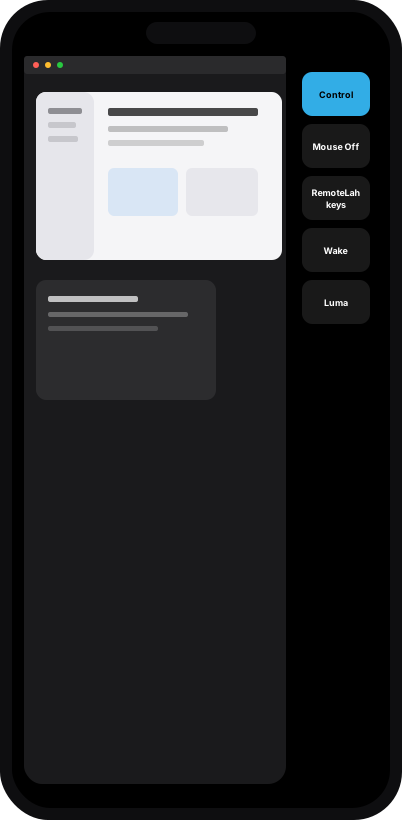
Connected on a network both devices already share. The viewer pointer moves the Mac pointer. Button down and button up stay separate.
Uses
A Mac you can already reach
Three ways to use RemoteLah. Each one stays on a path you already have.
RemoteLah
Home Mac
Connected
Same LAN
Connected
Home network
See the Mac at home
Open the main display from your iPhone when that Mac is already awake on the home network. Waking it from somewhere else needs another device already awake on that same LAN. Home Mac is an example name.
RemoteLah
Capture Input
On
Connected
Control
Control it from iPhone or another Mac
The iPhone sends touch, clicks, and keys. A second Mac sends the mouse and keyboard only while Capture Input is on. Both still need a network they already share.
iPhone
Mac
On this network
Typed hostname or IP
Use the network you have
Macs on the local network appear in the list. A VPN you already run, such as Tailscale, is reached by typing its hostname or IP. RemoteLah adds no account and no public relay.
Setup
Choose how the Mac is reached
The same iPhone or Mac app can use a RemoteLah host, or a Mac that already has Screen Sharing.
RemoteLah host
iPhone or Mac
one-time code
Mac running RemoteLah
On the Mac
Turn on Host mode and allow Screen Recording. Opening at login does not unlock the Mac.
Who can watch
One viewer at a time, from an iPhone or another Mac. It sees the main display.
How you trust it
A one-time code, not an account. It works once and expires within 5 minutes.
How you find it
Paired Macs on this network appear in the list. On a VPN you already use, type its hostname or IP.
Wake
Best effort on the local network. A wake packet does not prove the Mac woke, and it does not unlock it.
Screen Sharing
iPhone or Mac
Mac account
Mac with Screen Sharing
On the Mac
Turn on Screen Sharing or Remote Management. RemoteLah does not need to be running there.
Who can watch
The same iPhone or Mac app, using a permitted Mac account.
How you trust it
The Mac’s username and password. A VNC password alone is not accepted. This path does not encrypt the entire desktop session, so use a network you already trust.
How you find it
A separate list on this network. Away from it, type the VPN address. The usual typed port is 5900.
Wake
After you connect, Wake Display can nudge a sleeping display. This mode cannot wake a Mac that is not running RemoteLah.
Mac
macOS 14
Host and viewer
iPhone
iOS 17
Viewer
iPad
iOS 17
iPhone layout
Other devices
This release
Windows, Android, and the web are not included
Host
Connect a RemoteLah host
Turn the Mac on as a host, pair once, then connect over a network both devices already share.
1Turn on Host mode
On the Mac, turn on Host mode and allow Screen Recording. Quit RemoteLah and open it again after that permission changes. The picture does not start until Screen Recording is on.
RemoteLah
Host mode
On
Screen Recording
Granted
2Pair with a one-time code
Choose Show QR on the host. Scan it with the iPhone, or paste the code on another Mac. It works once and expires within 5 minutes. An IP address alone does not pair the devices.
Pair this Mac
Show QR
iPhone scans. Another Mac can paste the code.
Illustrative square. Not a scannable code.
3Find it, or type an address
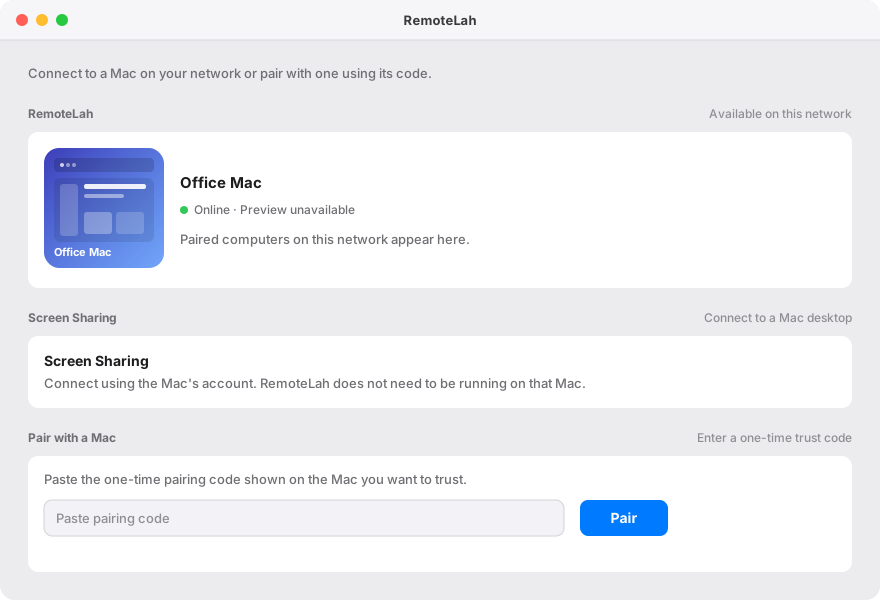
Paired computers on this network appear in the list. If the viewer cannot see the Mac, type the hostname or IP of a path you already have. That address does not replace the pairing code.
RemoteLah
Home Mac
On this network
hostname or IP
Home Mac is an example name.
4Choose Connect
The viewer can say “Connecting — a wake attempt can take up to 30 seconds,” then “Connected — waiting for picture,” until the main display arrives. One viewer controls that display at a time.
RemoteLah
Connecting — a wake attempt can take up to 30 seconds
Connected — waiting for picture
Features
What a host session can do
Display, pointer, keyboard, and Luma. The pictures are interface recreations, not a live connection.
Interface recreation of the Mac Connect window. The computer name is an example.Interface recreation of a host session on iPhone. The desktop is a stand-in.
RemoteLah
Display
Interface simulation. Not a live session.
The Mac streams its main display to one controlling viewer.
Screen Recording has to be on before the picture starts. The windows in this frame are a stand-in, not a captured screen.
Prototypes
Session states
These follow the app’s own messages. They are not a live connection, and they do not show a measured delay.
RemoteLah
No Macs nearby
Paired computers on this network will appear here.
Connecting
A wake attempt can take up to 30 seconds.
Connected — waiting for picture
The Mac has not sent a desktop picture yet.
Connected
Desktop pixels are on screen. This page uses a stand-in, not a captured display.
Looking, Connecting, and Waiting use the app’s own lines. Picture is the moment those pixels arrive. No latency figure is shown.
Pair this Mac
RL1.
Scan this code with RemoteLah. It works once and expires within 5 minutes.
The square is a label, not a scannable code.
Paired. The viewer stores the host public key in the Keychain. A used secret cannot add a second viewer.
Remote picture
Pointer position uses newest-wins updates. A late picture does not hold the cursor.
Waiting for input.
Button down and button up stay separate. Modifiers are their own events.
Questions
Before you connect
Platform, install, pairing, network, Screen Sharing, and wake, as the app behaves now.
The Mac app needs macOS 14 and can host or view. The iPhone app needs iOS 17 and is a viewer. iPad uses that iPhone layout. Windows, Android, and a web viewer are not in this release.
Turn on Host mode and allow Screen Recording, Accessibility, and Local Network. If Screen Recording or Accessibility is still off, turn on RemoteLahMac in System Settings, then quit RemoteLah and open it again. Closing the window leaves the app running. The picture does not start until Screen Recording is on. Clicks and keys need Accessibility. Opening at login does not unlock the Mac.
Choose Show QR on the host. Scan it with the iPhone, or paste the code on another Mac. The code works once and expires within 5 minutes. An IP address alone does not pair the devices, and RemoteLah does not use an account for this. Pair with Code is also on screen. A live six-digit attempt stops and says: This Mac cannot pair with a code. Use the QR code.
A path you already have: the local network, a VPN such as Tailscale reached by hostname or IP, or a port you forward. Bonjour stays on the local network. RemoteLah does not add a public relay or NAT traversal.
When the Mac already has Screen Sharing or Remote Management. RemoteLah does not need to be running there. Sign in with that Mac’s username and password. A VNC password alone is not accepted. The usual typed port is 5900, and this path does not use the pairing code. Direct Screen Sharing does not encrypt the entire desktop session.
Wake is best effort on the local network. Sending a wake packet does not prove the Mac woke, and it does not unlock the Mac. A normal iPhone build does not send that broadcast. A VPN can reach a Mac that is already awake. Screen Sharing cannot wake a Mac that is not running RemoteLah.
The host shares its main display with one controlling viewer. Leaving the iPhone app ends the live session, and reconnect is explicit. Luma, the grayscale preset, is only on this host path.